
Logging in with SSO and Passkey
Besides your email and password, your Acreditta Wallet supports two additional, faster login methods that don’t require remembering a password.
SSO (Google or Microsoft)
On the Wallet’s login screen, choose Continue with Google or Continue with Microsoft and log in with that account.
🔎 Note: if it’s the first time you use SSO and you already had an account created with that same email, the platform automatically links the provider to your existing account — no duplicate account is created, and you keep access to all your previous credentials.
If the SSO provider isn’t available at some point, you can always fall back to your email and password.
Passkey (fingerprint, Face ID, or security key)
A Passkey lets you log in with your fingerprint, facial recognition, or a physical security key, using the FIDO2/WebAuthn standard, without typing a password.
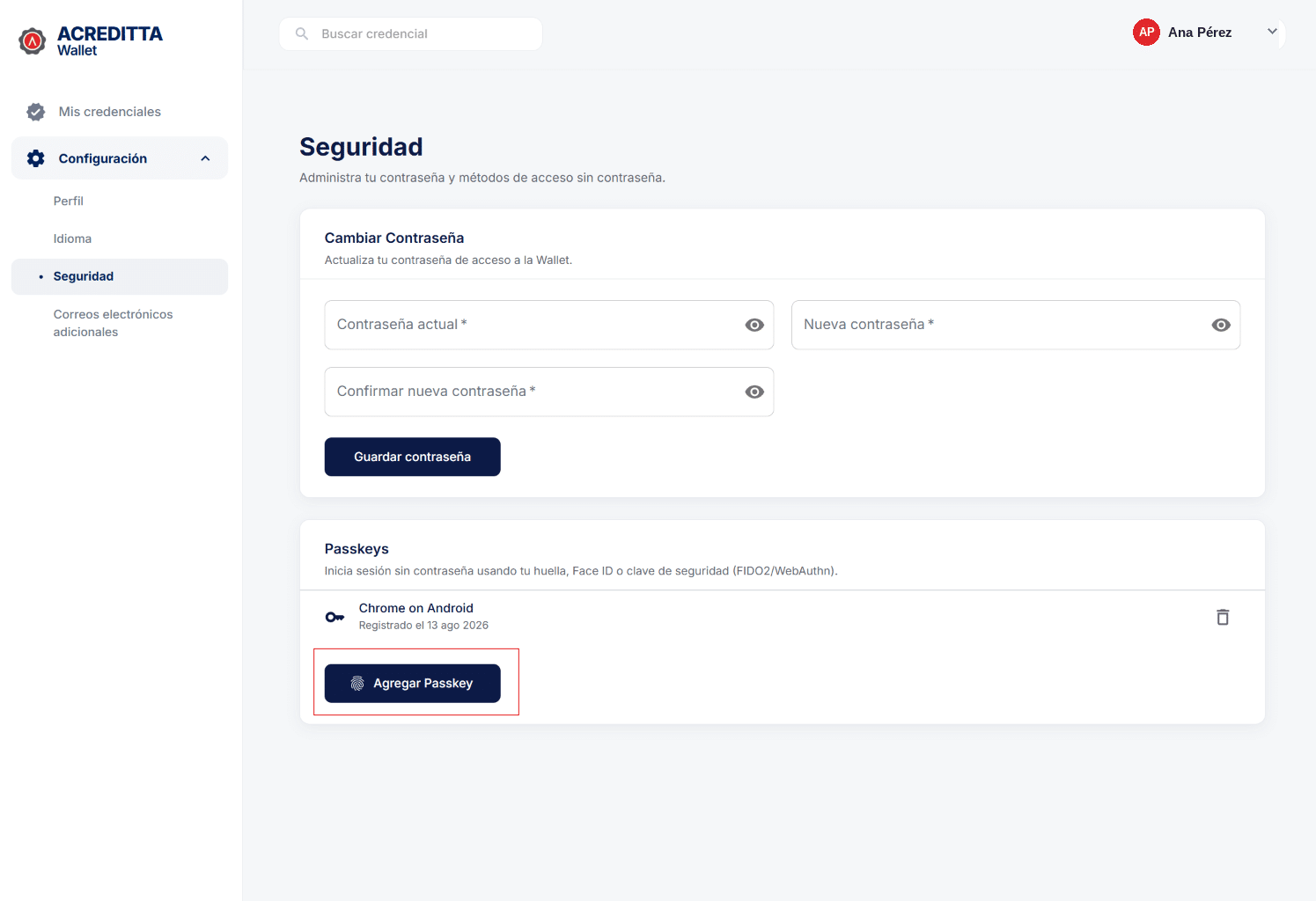
- Log in to your Wallet and go to Settings > Security.
- In the Passkeys section, click Add Passkey.
- Follow your device’s or browser’s instructions to register your fingerprint, Face ID, or security key.
From that same screen you can see the devices with a Passkey already registered (for example, “Chrome on Android” and the registration date) and remove them with Remove Passkey if you no longer use them.
⚠️ Important: changing your password or your Passkeys sends a notification to your primary email, so you can spot any change you didn’t make yourself.