
Adding my credential to Google Wallet or Apple Wallet
You can save your accepted credentials directly to your phone’s native Wallet app, to carry them with you and show them even offline.
- Open the credential’s details from your Acreditta Wallet.
- Click Add to Wallet.
- Choose Add to Google Wallet or Add to Apple Wallet, depending on your device.
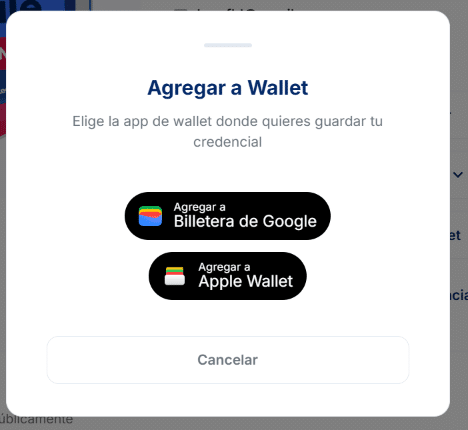
4. Confirm saving it in the native app that opens.
The pass includes the credential’s name, your name, the issuer, the issue date, and a verification QR code — anyone who scans it is taken to your credential’s public verification page.
🔎 Note: this option is only available for credentials that are accepted, not archived, not test credentials, and already published on the blockchain. If you don’t see the button, your credential probably doesn’t yet meet one of these conditions.
⚠️ Important: if the issuer revokes the credential, the pass in your Google Wallet or Apple Wallet updates to reflect the revoked status — it will no longer pass QR verification.
Adding your credential to a native wallet doesn’t replace your Acreditta Wallet: that remains the central place where you manage all your credentials.