
Linking additional emails to my Wallet
You can associate several email addresses with the same Wallet — useful if you’ve received credentials on a personal email and a work or university one over time.
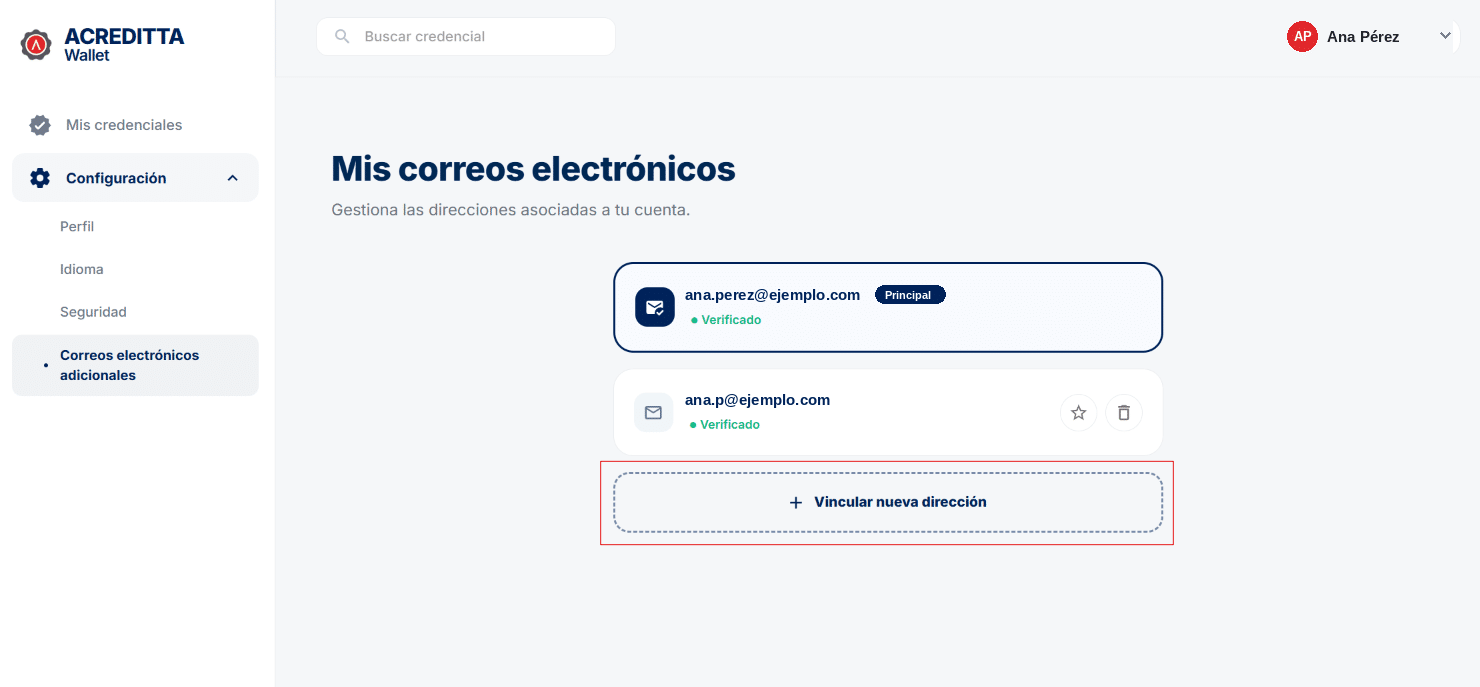
- Log in to your Wallet and go to Settings > Additional emails.
- Click Link new address.
- Enter the email you want to link. We’ll send a security code to that address.
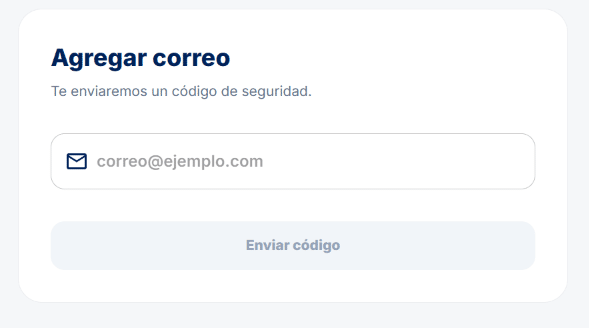
4. Enter the code to confirm that email belongs to you.
Once verified, the email appears in your list with Verified status and you can mark it as Primary at any time, or remove it with Remove email.
⚠️ Important: if the email you link already had its own Wallet with credentials, instead of just linking, a merge process begins. See Merging my wallets with different emails.