
Getting to know my credential’s public page
Your credential’s public page is the link you get by email and the one you share on LinkedIn or other networks. It is designed so that anyone (you, a recruiter or any Verifier) understands at a glance who received which credential and which organization issued it.
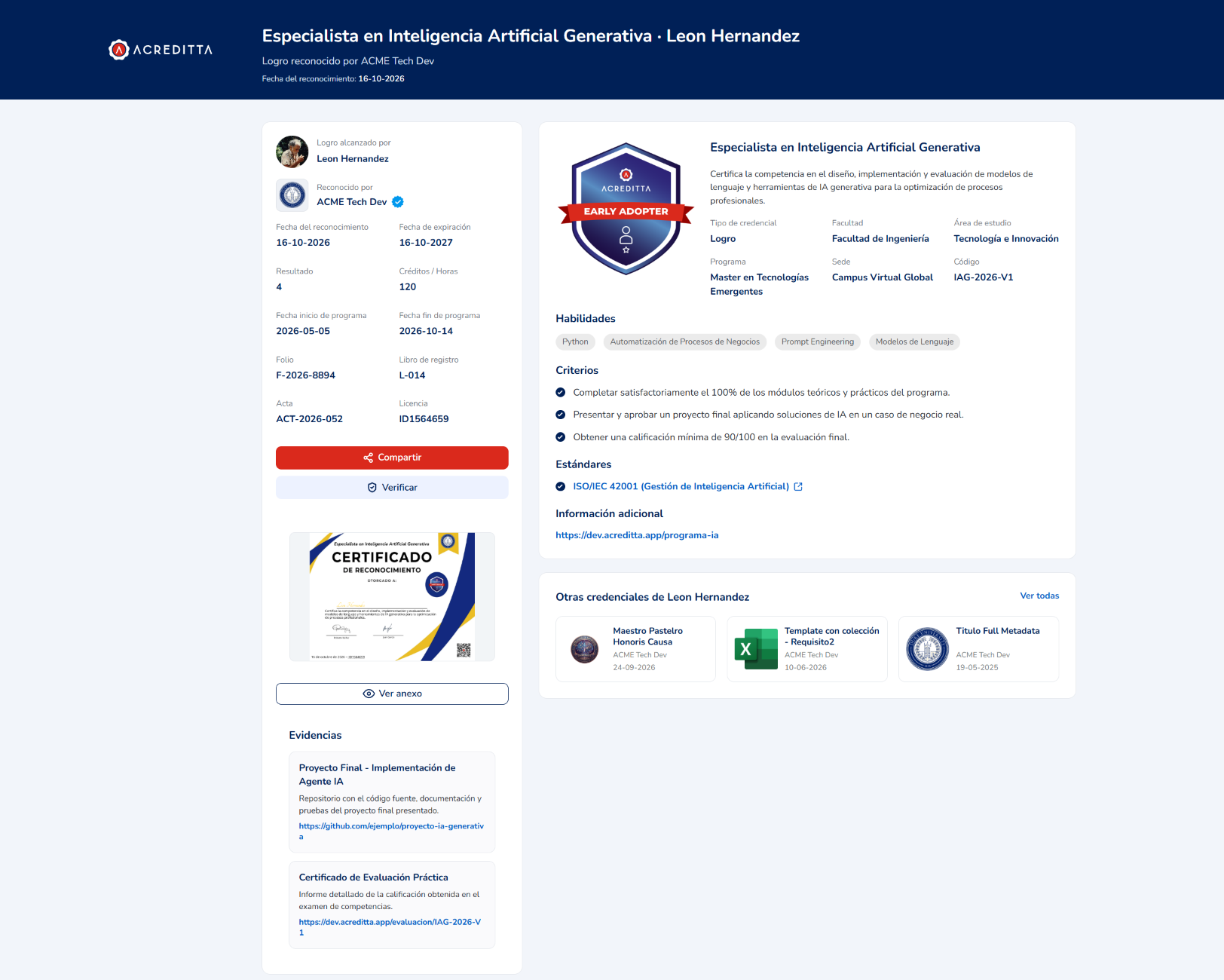
Header

The header spans the full width of the page and has three lines:
- Credential name · your name.
- The credential type, a verb specific to that type and the Issuer. For example, “Achievement recognized by ACME Tech Dev”, “License issued by…” or “Master Degree conferred by…”. This way the type (a Course, a Certification, a Doctorate) is visible without reading the rest of the page.
- Recognition date.
On a computer, when you scroll the header hides and the credential name stays visible in the top bar next to the Acreditta logo. On a phone, the header scrolls with the rest of the page.
🔎 Note: if your credential has expired, you’ll see an expiration notice right below the header, which stays visible while you scroll.
Your data and actions (left column)
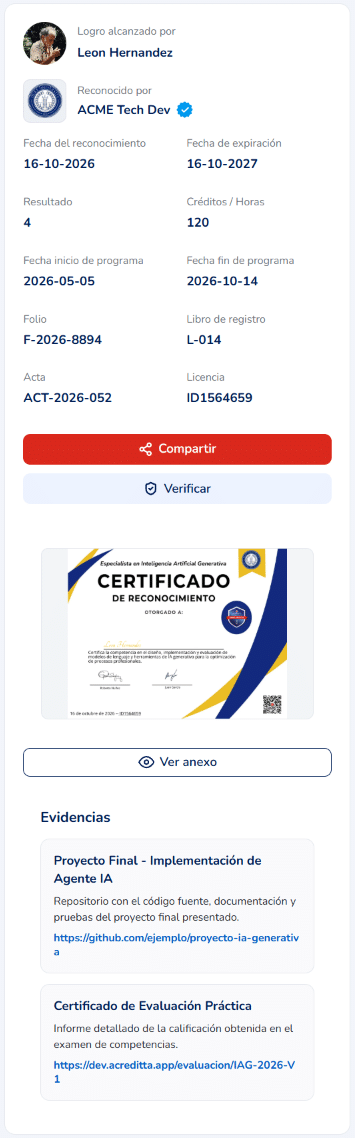
The left column shows what is unique to your credential:
- Your name and photo, with the verb that matches the type (for example, “Achievement achieved by”). If you have a public profile in your Wallet, clicking your name or photo opens that profile.
- The Issuer, with its verified organization badge.
- Your issuance data: recognition date, expiration date, result, credits or hours, program start and end dates, and record data such as folio, registry book, minutes or license number. Only the ones your Issuer filled in appear.
- Share and Verify. Download is now inside Share; see Downloading my credential’s image and Verifying a digital credential.
- The PDF record and the See attachment button, if your Issuer included them.
- Evidence: the projects or documents that back your achievement.
On a phone, this card comes first and shows only the first two issuance data fields; tap it to see the rest. The Share and Verify buttons float while you scroll.
The credential (right column)
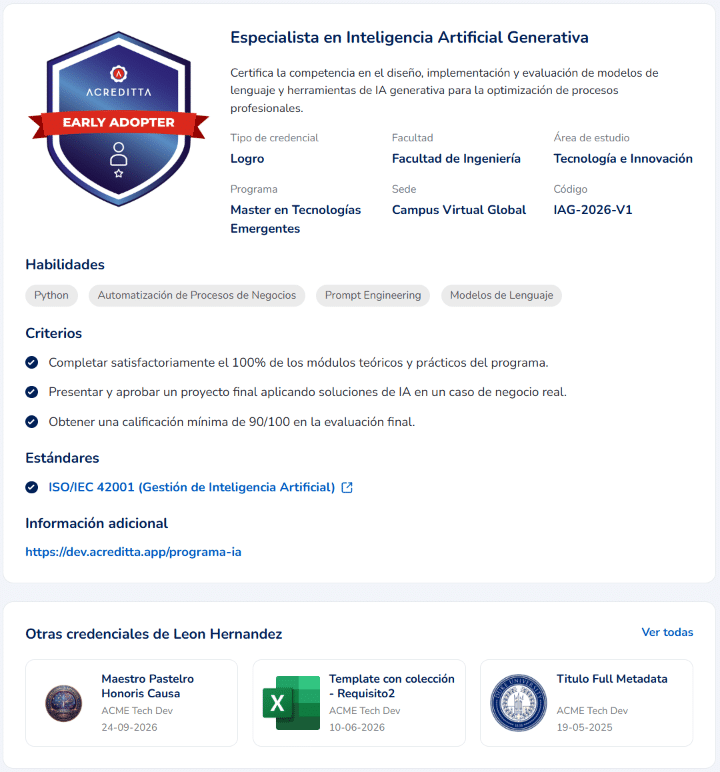
The right column describes the credential as the Issuer defined it in the template: the seal, the name, the description, the credential type, the academic context (faculty, field of study, program, campus), the code, the Skills, the Criteria, the Standards and the Additional information.
Other credentials
Below the credential you’ll see up to 3 more credentials you received: first your favorites, then those from the same Issuer and then the most recent ones. See Marking credentials as favorites. Only public credentials appear: private and archived ones are never shown. Click See all to open your public profile.
⚠️ Important: if you don’t want a credential to appear in this section or on your profile, make it private from your Wallet. See Making a credential public or private.
Links that take you outside the credential page (profile, standards, evidence, more information) open in a new tab.