
Accepting a credential I received
When an issuer grants you a digital credential, you’ll get an email notifying you that a new credential is available. Click “Claim your credential” inside that email to go to the acceptance screen and confirm it.
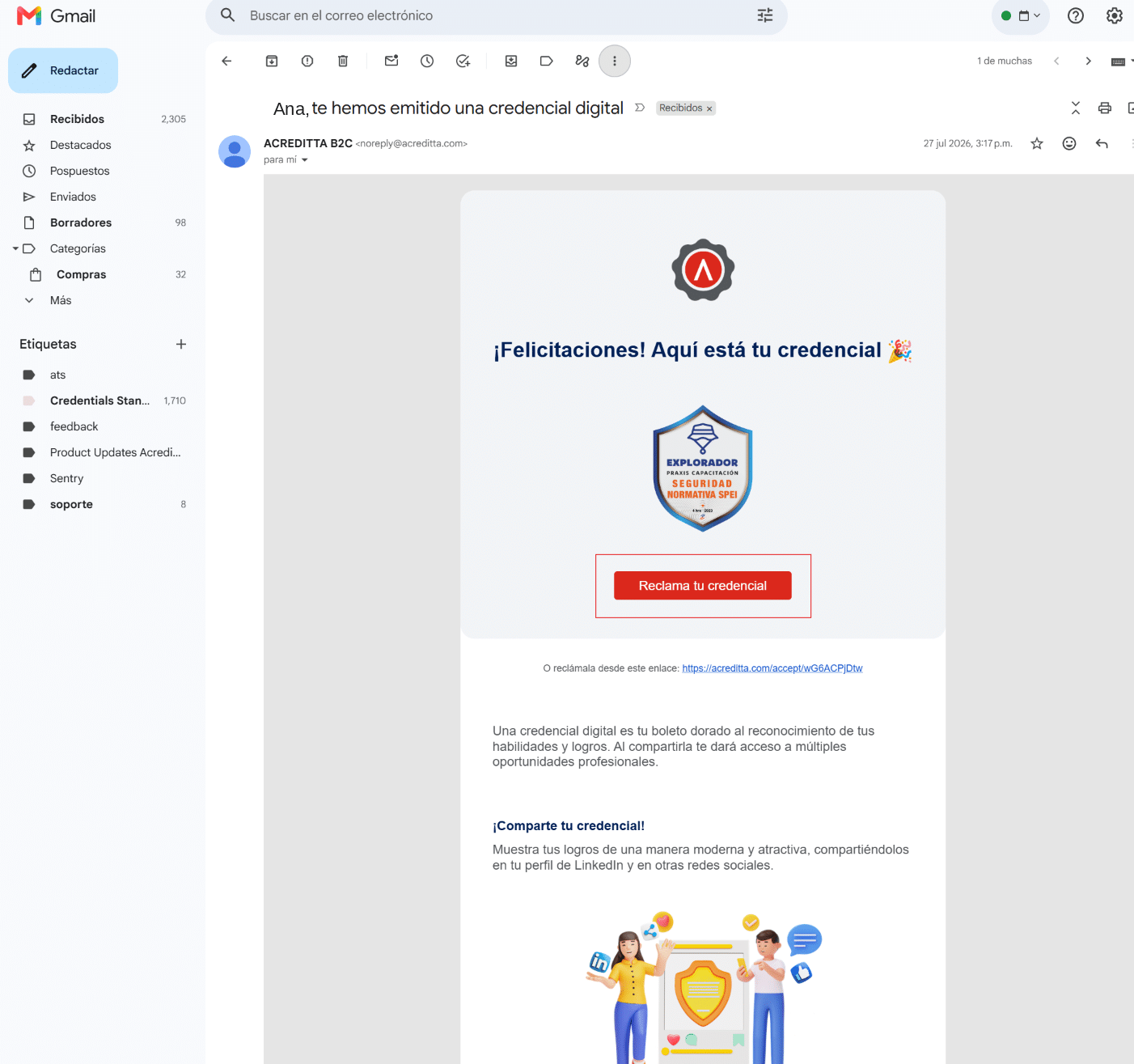
If you don’t receive the email, check your SPAM folder before contacting your issuer.
Other ways the notification can reach you
Not every issuer uses email as the only channel. Depending on how your issuer configured the issuance, you may receive the notice in one of these ways:
- If you received the credential through a course or learning platform (LMS): you won’t get a separate email — the credential shows up directly inside the course, with its own link to accept it.
- If your issuer disabled sending emails: they’ll share the acceptance link some other way (for example, a direct message or a notice in their portal) instead of by email.
- Via WhatsApp: if your issuer has this channel enabled and you haven’t accepted your credential 3 days after receiving the email, you’ll get a reminder on WhatsApp with the same link to claim it. If your issuer disabled email but did configure WhatsApp, you’ll receive the notice there right away.
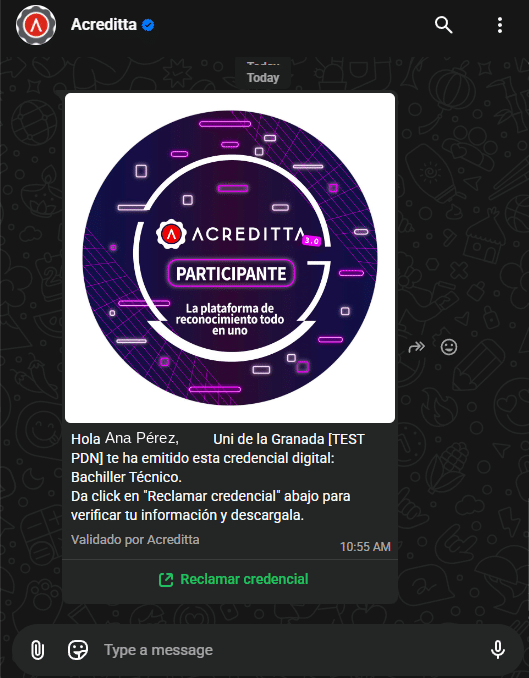
🔎 Note: no matter which channel it reaches you through, the link always takes you to the same acceptance screen.
What you can do on the acceptance screen
Before confirming, check that your credential’s data (name, dates, program, or other information) is correct. From there you can also:
- Suggest a correction, if your issuer allows it — see Requesting a correction to my credential.
- Decide whether your credential shows up in search engines like Google, turning that option off before accepting if you’d rather it not be indexable. If you later create your Acreditta Wallet, you can change this preference anytime from Making a credential public or private.
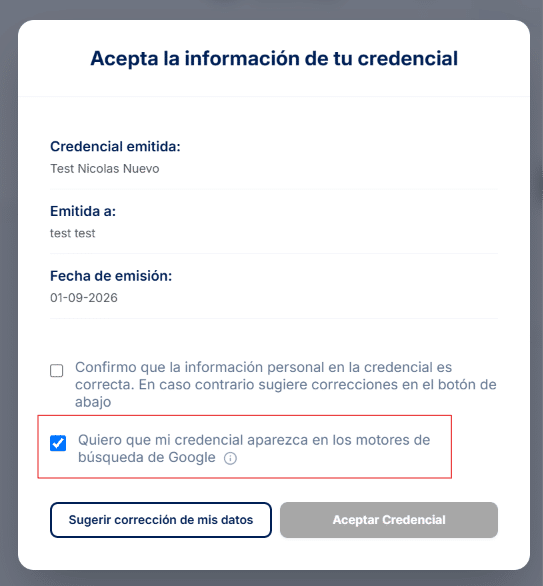
⚠️ Important: you must check the box confirming your data for the Accept Credential button to be enabled.
Below the buttons you’ll see the notice “By continuing, you accept our Terms of Service and our Privacy Policy”, with a link to each document. By accepting your credential you accept both.
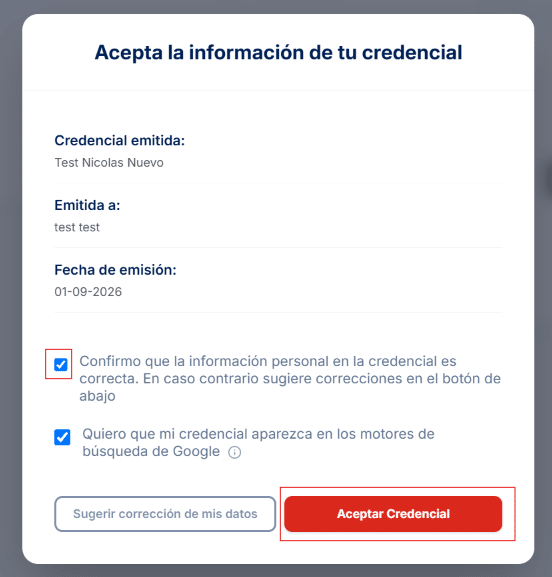
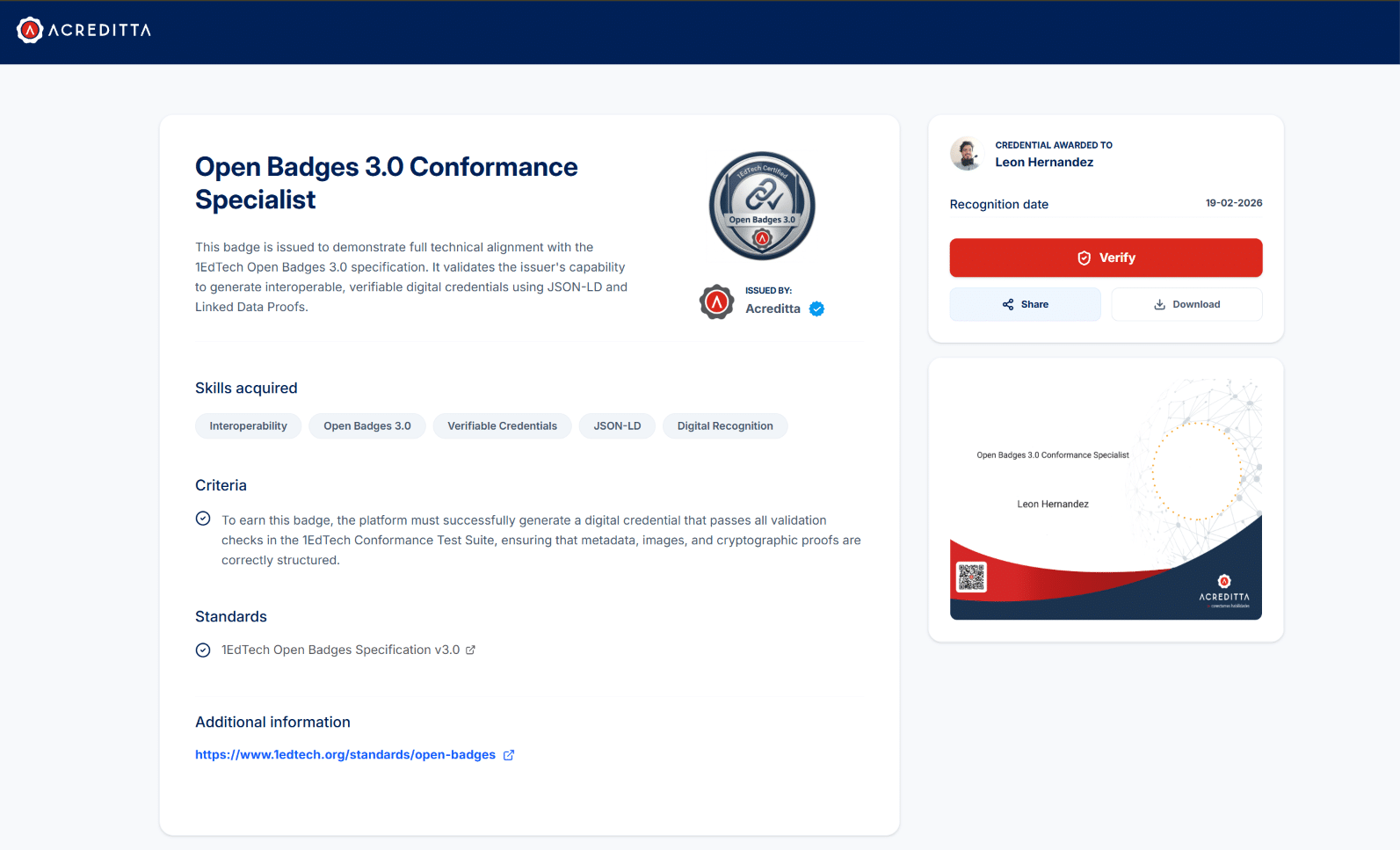
Once you accept, you’re automatically redirected to your credential’s public page, where you can share, verify, and download it.
Accepting without a Wallet yet
You don’t need an Acreditta Wallet account to accept your credential. You can do it directly from the link you received (express acceptance). If you later create your Acreditta Wallet with the same email you received the credential on, you’ll find it there along with any other credentials granted to you.
Accepting from your Wallet
If you already have an Acreditta Wallet, any pending credential will still show up in your My credentials list so you can accept it from there, without depending on the email.
🔎 Note: once accepted, your credential is available to share, verify, and download. See Verifying a digital credential and Sharing my credential on social media.
If something in your credential isn’t correct
If you notice an error in your data (name, dates, or another field) before accepting, some issuers let you request a correction from the same acceptance screen. See Requesting a correction to my credential.
Stop receiving Acreditta emails
Acreditta emails include the Unsubscribe from Acreditta option. If you use it, or if you mark one of those emails as spam, you stop receiving Acreditta emails from any issuer, including notices about new credentials. In that case, each issuer will need to share the acceptance link with you through another channel.
Get more out of your credential: create your Wallet
Accepting your credential without a Wallet gives you immediate access to its public page, but centralizing your credentials in an Acreditta Wallet has advantages: it brings them all together in one place, protects your access with SSO or Passkey, and makes it easier to share and manage them going forward. See Creating my Acreditta Wallet to learn about the benefits and create yours.